Running on the Cloud
After following the quick start, you should now have an agent up on the platform, you can see this if you click on the model selection dialogue in the Genie tab of any project and search for your model:
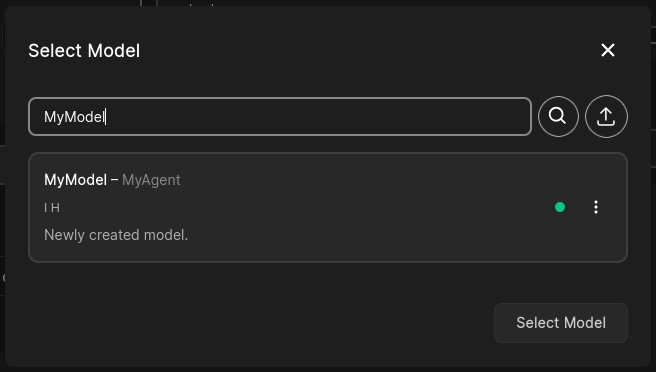
Select your model in the selection dialogue and define some valid expressions e.g.:
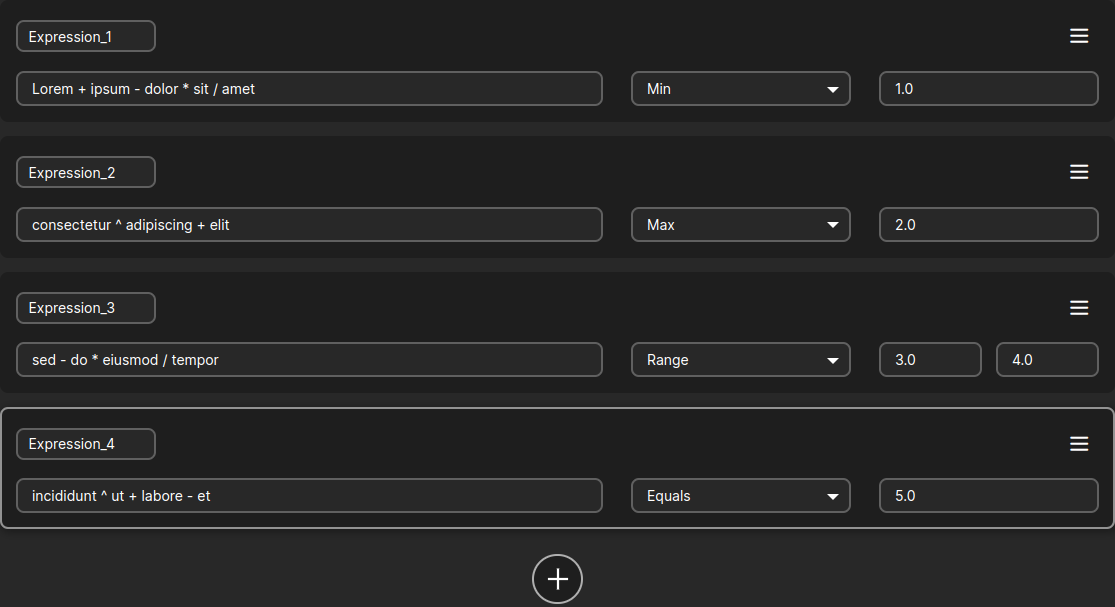
And start the optimization with:

If you come back to the console where you started the agent, you will see episode and step logs from
RLExecutor, for example:
yyyy-mm-dd hh:mm:ss,ms - INFO:     Episode: 1
yyyy-mm-dd hh:mm:ss,ms - INFO:     	Ended by: Truncation
yyyy-mm-dd hh:mm:ss,ms - INFO:     	Steps taken: 1
yyyy-mm-dd hh:mm:ss,ms - INFO:     	Total reward: -12.5
yyyy-mm-dd hh:mm:ss,ms - INFO:     	Total steps taken: 1

yyyy-mm-dd hh:mm:ss,ms - INFO:     Episode: 2
yyyy-mm-dd hh:mm:ss,ms - INFO:     	Ended by: Truncation
...
Congratulations! You have successfully started an optimization. You can stop it at any time by hitting the
Stop Optimization button that appeared in place of the Genie Optimize button.
Next, see What To Do Next for a high-level map of customizing agents, executors, and RL environments.