Overview
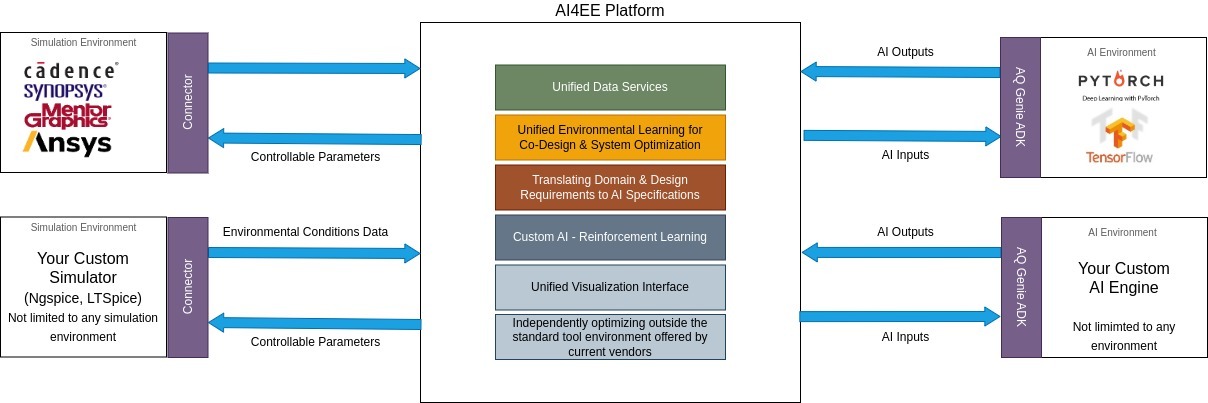
The diagram above shows how DGenie fits between your simulation tools and AI engines, acting as a bridge that allows both to work together in a closed loop.
How to Read the Diagram
Left side – Simulation Environments
On the left, you see different simulation environments such as Cadence, Synopsys, Mentor Graphics, Ansys, and even your own custom simulator. These represent the tools you already use to simulate circuits and systems.
Through a connector, these tools send environmental conditions data (such as simulation results, operating conditions, or performance metrics) into DGenie. At the same time, they receive controllable parameters (such as component values or design variables) back from DGenie.
From a user's perspective, this means:
- You continue using your existing simulator
- DGenie communicates with it in the background
Center – DGenie Platform
The middle block represents the DGenie Platform itself, where most of the intelligence resides.
Here, DGenie:
- Collects simulation data using Unified Data Services
- Converts your design goals into AI-understandable instructions
- Applies AI-based learning, including reinforcement learning
- Provides a unified visualization interface to view results and track progress
As a user, this is where you:
- Define what you want to improve (for example, performance, efficiency, or stability)
- Monitor how your design evolves across optimization cycles
Right side – AI Environments
On the right side, the diagram shows AI environments such as PyTorch, TensorFlow, or custom AI engines. These are connected through the Genie ADK.
DGenie sends AI inputs (processed simulation data) to the AI models and receives AI outputs (optimized parameter suggestions) in return. These outputs are then routed back to the simulation tools on the left.
For the user, this means:
- You are not locked into one AI framework
- You can use standard AI tools or your own custom models
What This Means for You as a User
In simple terms, the diagram shows a closed-loop workflow:
- You run a simulation in your chosen tool
- Results are sent to DGenie
- AI analyzes the data and suggests improvements
- Updated parameters are sent back to the simulator
- You repeat the process and track progress visually
DGenie manages the data flow, optimization logic, and visualization, so you can focus on understanding your design rather than handling tool integration.
Key Takeaway
The diagram explains the system architecture, and DGenie's role is to:
- Sit between simulation tools and AI engines
- Enable AI-assisted optimization without changing your existing workflow
- Provide a clear, visual way to track progress and improvements
All you need is a browser, a supported simulator, and (optionally) an AI framework—DGenie handles the rest.